
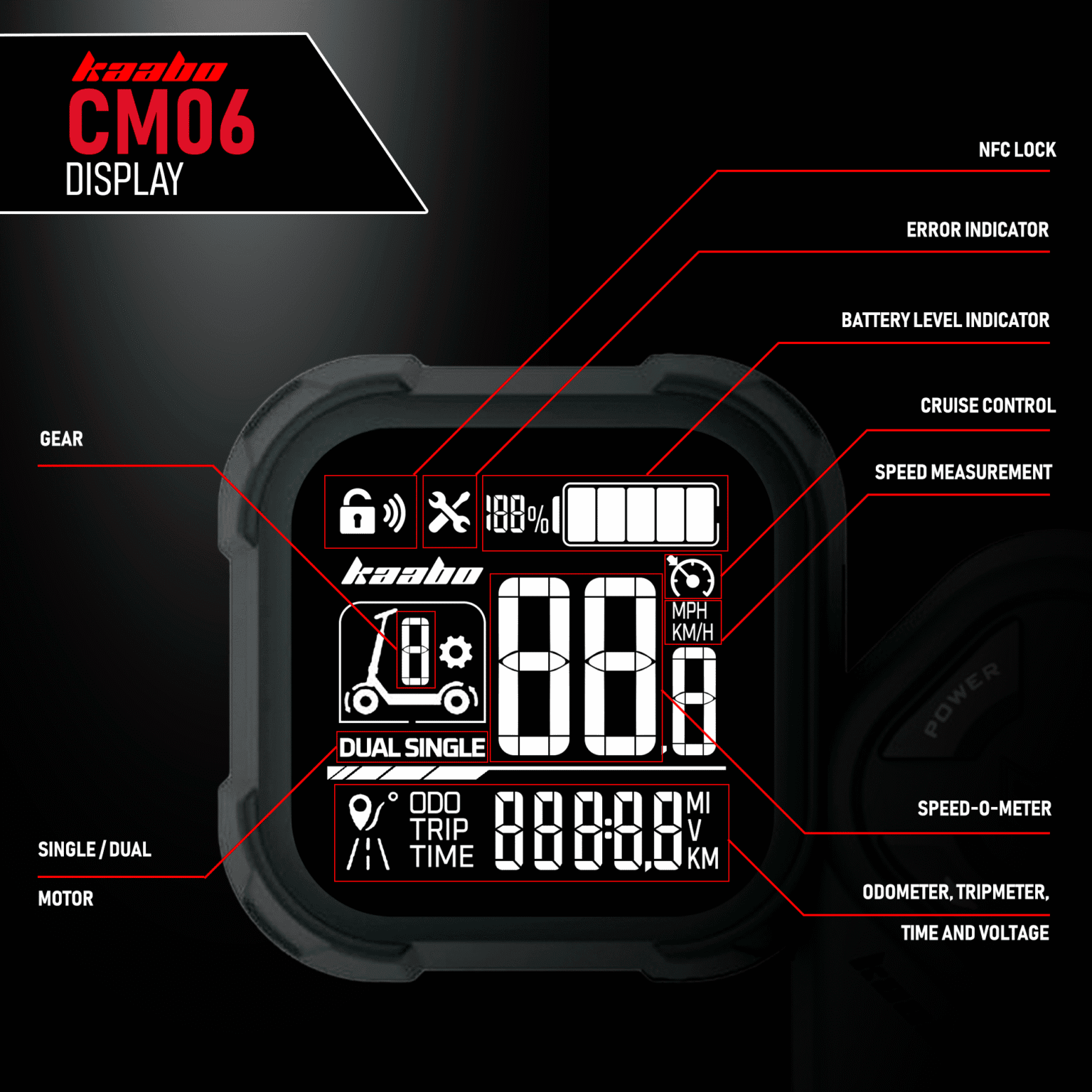
 Power Button – To turn the electric scooter ON or OFF, press the power button for 3 seconds.
  Mode Button – The mode button allows you to toggle through different display parameters when the electric scooter is turned ON. The available parameters are further elaborated below.
 /
/ Up/Down Button – The up and down buttons allows increasing or decreasing values. When in standby mode, pressing the corresponding buttons will increase or decrease the gear.
 NFC Card – This throttle display support NFC for locking and unlocking. The section between the buttons is the NFC induction area that can be used to unlock the electric scooter. Whenever you see this icon in this user guide, tap the NFC card at the induction area.
 NFC indicator – The NFC indicator signals interaction with the NFC tag.
 Error indicator – The error indicator shows when the electric scooter needs attention and something is faulty.
 Auto Cruise Control indicator – The auto cruise control indicator shows when it is enabled.
 /
/  Single / Dual indicator – If your electric scooter supports dual motors configuration, this indicator shows which mode it is currently on.
- GEAR – This electric scooter can be switched between three gears. Think of it as a “speed limiter” where gear 1 sets the electric scooter to its slowest speed while gear 3 sets it to the highest speed. Some of the models may allow going up to gear 5. Unlike conventional vehicles where you have to start with the lower gear and shift to the higher one as you move, electric scooters allow you to start with the top gear right away if you want to. You would want to switch to lower gear when you are riding in a busy area and use a higher gear when the street is less crowded.
- Speed-o-meter – The two large digits on the display shows the speed that the electric scooter is cruising at.
- Battery Indicator – The battery indicator shows a rough estimate of the battery level of the electric scooter. Typically, when the battery drops down to the last block, you should be getting ready to recharge the electric scooter.
- Throttle – The throttle stick functions as the electric scooter’s accelerator. It is a variable throttle, which means, the electric scooter’s speed changes according to how deep the throttle is pressed. If the “kick start” mode is enabled (indicated by the “Zero” icon on the display), you will need to give the electric scooter a gentle push to glide before pressing the throttle to get it moving.
Long press the Power Button for 2 seconds to turn on the electric scooter, the display will enter into NFC locked mode.
Long press the Power Button to turn on the electric scooter, the display will enter into NFC unlocking interface, and the NFC indicator will blink. Tap the NFC card at the NFC induction area to unlock the scooter. Once the electric scooter is unlocked, the NFC indicator will disappear.
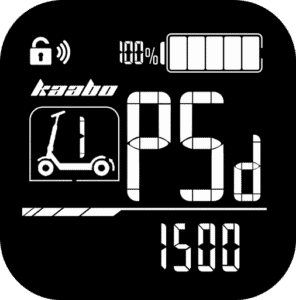
Long press the Power Button to turn on the electric scooter, the display will enter into NFC unlocking interface, and the NFC indicator will blink. Now press the Mode Button to enter the password interface. The default password is 1500. Press the Up button to increase the value and Down button to decrease it. Press the Mode button to move on to the next value. Once the password is entered correctly, the electric scooter will unlock.
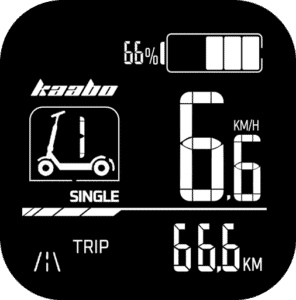
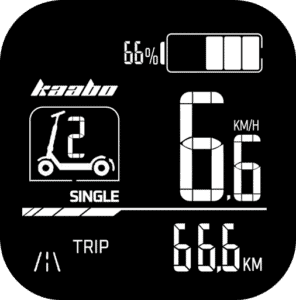
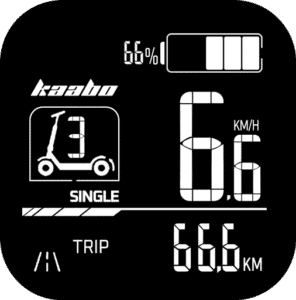
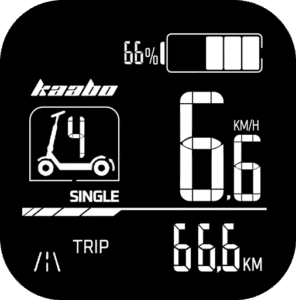
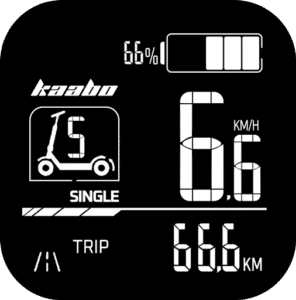
- Gear 1 – Slowest speed
- Gear 3/5 – Maximum speed
To switch between the gears, press the Up Button to increase and Down Button to decrease.
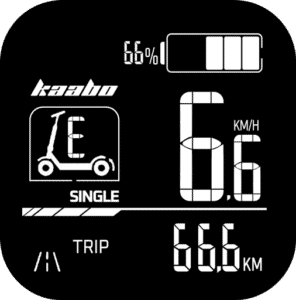
If your electric scooter supports 5 gears, additionally, it will have Eco Mode option that puts the electric scooter into energy saving mode. This will be indicated by the letter “E” in the gear indicator. To enter Eco Mode, keep pressing the Down Button when you reach gear 1 and the Eco Mode will engage.
While the scooter is turned ON, pressing the Mode Button cycles through several parameters that gives you a quick glance at necessary information. The modes will cycle between the following:
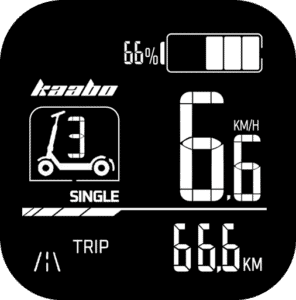
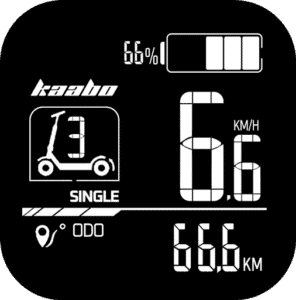
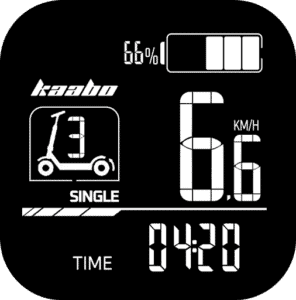
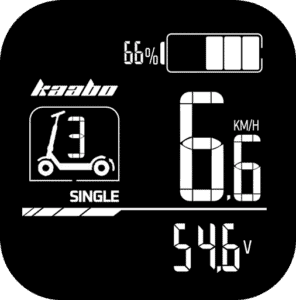
The Trip meter and Time since turned on can be reset so you can gauge the time and distance travelled from the point of reset.
To reset them, first let the electric scooter turned on for more than 10 seconds. Now, make sure you’re on the Trip interface as the reset function will only work on this interface. If you’re not in Trip interface, press the Mode button to switch to it. Now, long press the Mode button and the Trip icon will blink. Press the Mode button once again, and now the Trip meter and Time will both reset to zero. You cannot selectively reset either the Time or Trip meter, both of them will reset together.
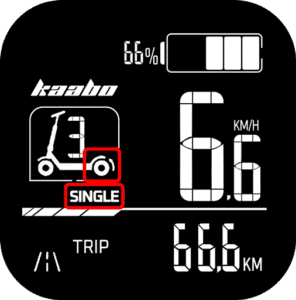
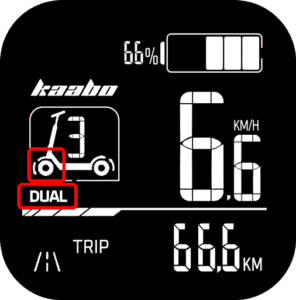
If your electric scooter has dual motor configuration, you can switch between single motor and dual motor seamlessly. By default, the electric scooter will always turn on in single motor mode that spins only the rear wheel. This is shown by single indicator and a small arrow behind the rear wheel of the electric scooter icon on the display.
To switch to dual motor mode, long press the Up Button and the dual motor mode will engage. This is shown by dual indicator and a small arrow in front of the front wheel of the electric scooter icon on the display.
To switch back to single motor, long press the Up Button again.
There are three different cruise control settings. These modes control how and when cruise control activates, giving you flexibility based on your riding habits. These modes can be selected in the P-settings that are elaborated below in this user guide.
Mode 0 – Auto Cruise Control OFF
In this mode, cruise control is completely disabled. This setting is ideal for new riders or for city riding where constant speed adjustments are necessary. Holding the throttle steady will not activate cruise control in this mode, giving you full manual control at all times.
Mode 1 – Auto Cruise Control Automatic
In this mode, the auto cruise control indicator is shown on the display and it activates automatically. When you hold the throttle in a fixed position for about 7 seconds, the auto cruise control indicator will blink continuously to indicate that auto cruise mode has been engaged. You can then release the throttle, and the electric scooter will continue at the same speed until you tap the brake or press the throttle. This mode is best for long, uninterrupted roads where maintaining a constant speed is beneficial.
Mode 2 – Auto Cruise Control Manual
In this mode, auto cruise control is enabled but requires manual activation. This means the feature will not engage automatically and the auto cruise control icon will not be immediately displayed. Instead, while maintaining a steady speed, you will have to long press the Down Button to activate the auto cruise control function, upon which only, the auto cruise control indicator will be shown. At this point, keeping a constant speed will engage the auto cruise control and the auto cruise control indicator will blink continuously until you tap the brake or press the throttle. This setting offers more control and prevents unintended activation, making it suitable for riders who occasionally use cruise control on longer rides.
| Battery Level (%) | Battery Icon | Description |
|---|---|---|
| 80% and above |  |
Full battery; all 5 bars are displayed |
| 60% – 79% |  |
Displays 4 bars |
| 40% – 59% |  |
Displays 3 bars |
| 20% – 39% |  |
Displays 2 bars |
| 10% – 19% |  |
Displays 1 bar |
| 5% – 9% |  |
No bars displayed |
| Below 5% |  |
No bars; battery icon blinks at 1Hz to indicate critically low power |
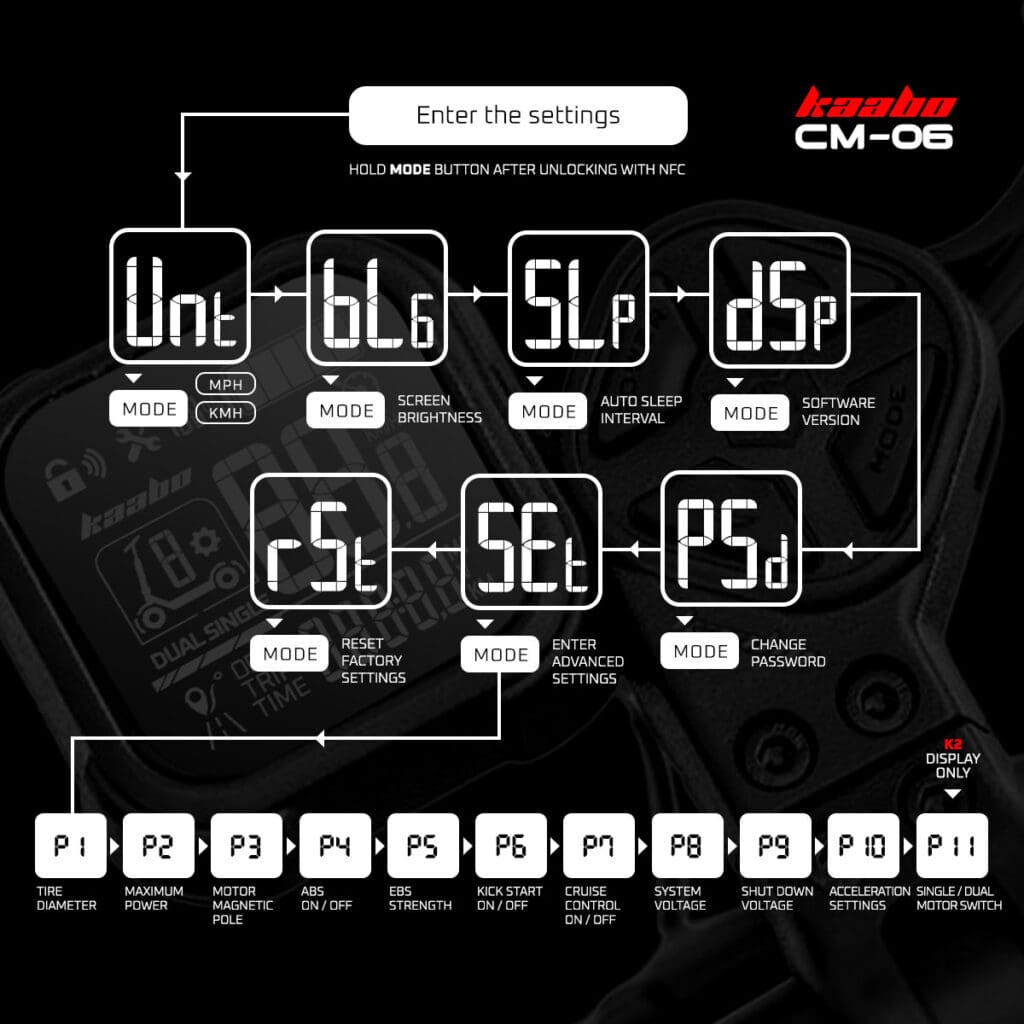
The Kaabo CM06 display throttle includes basic settings that allows tweaking of common settings of the electric scooter and its display. To enter these settings, turn on the electric scooter by long pressing the Power Button, then within 10 seconds, long press the Mode Button to enter the settings menu. After that, cycle through the settings by pressing the Up Botton or Down Button. To enter the setting, press the Mode Button and the setting’s parameter will start blinking. During this time, press the Up Button or Down Button to alter the values. Once done, long press the Mode Button to go back to the settings toggle menu. To exit, long press the Mode Button again. The setting sequence is displayed in the table below:
To access the P-Settings menu on your electric scooter:
After turning on the electric scooter, within 10 seconds, press and hold the
Mode Button for 2 seconds.
This will enter the basic settings menu.Press the
Up Button until you see SET that indicates “Advanced Settings”.
Press the Mode Button to begin the password entry sequence.- Insert the password to enter the P-settings menu.
The default password is 1500 if it was not changed. Use the Up Button to increase the value and Down Button to decrease it. Press Mode Button to move to the next digit. Once you have entered the password, press the Mode Button to enter the P-settings. Use the
Up Button and Down Button to cycle through the P-settings.
Each press switches to the next/previous setting.To select a setting to change, press the
Mode Button.
Then, adjust the value:- Up Button: Increase the value.
- Down Button: Decrease the value.
To confirm your setting and return to the P-Settings menu, long press the
Mode Button.
Repeat Steps 4 – 5 to change other settings. To exit P-Settings completely and return to normal riding mode, long press the Mode Button.
Here’s what each P-setting does:
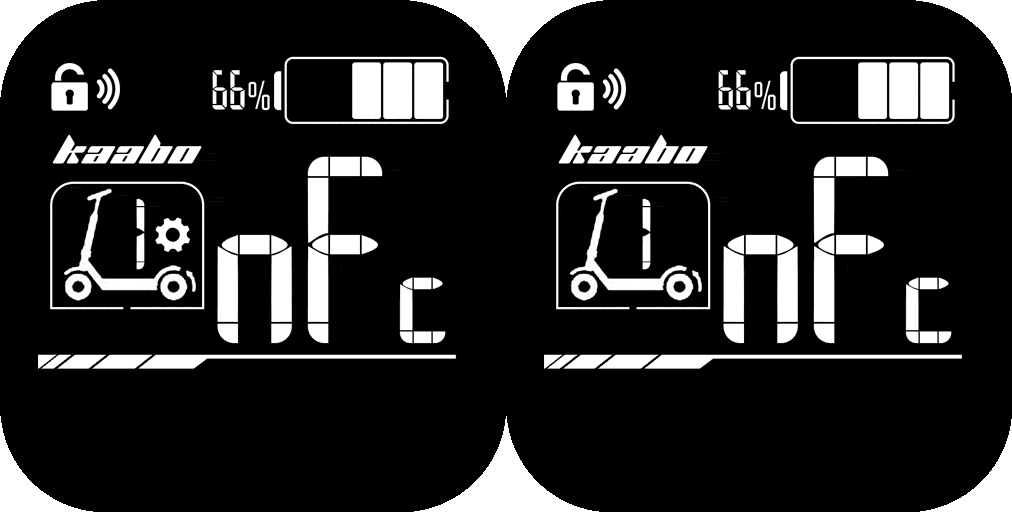
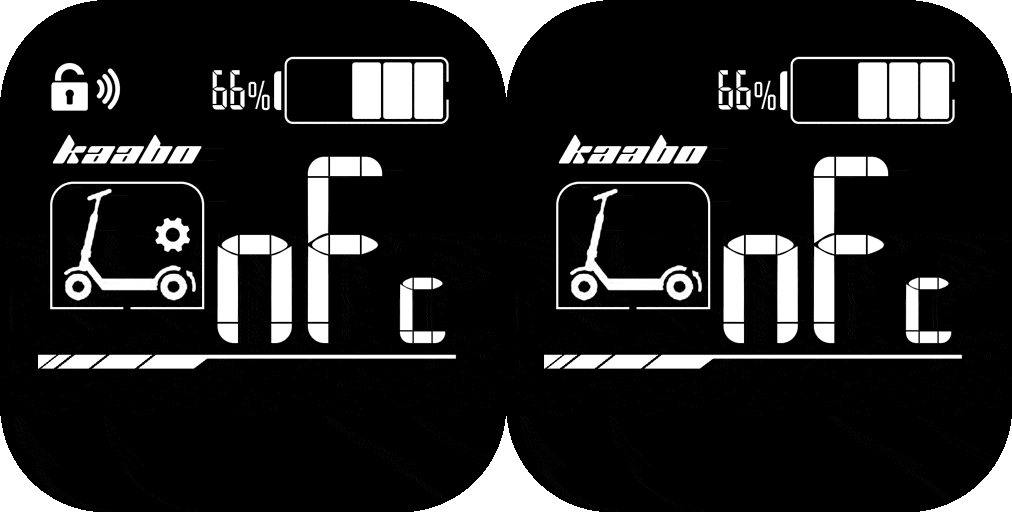
- Long press the Up Button, Down Button and Mode Button simultaneously. You will now see “NFC” displayed with the cog icon blinking.
- Now press the Mode Button and the NFC indicator will also blink, while the number “1” disappears.
- Now tap the NFC tag at the NFC induction area until you see “1” and the NFC indicator stops blinking.
- Repeat steps 2 – 3 for additional NFC tags. If you’re done with the pairing, long press the Mode Button to exit NFC pairing mode.